
You can book a room for an event through the Book Room page. You must first enter your event information and then To access this page, click Book Room.
Edit Event
-
Enter the Event Title. Note this is the only required field.
-
Enter the Organization if desired.
-
Enter the Event Description if desired.
-
Enter any Special Requests associated with this event if desired.
-
Enter the main Contact person for this event if desired.
-
Click Next once you are finished.
Book Room
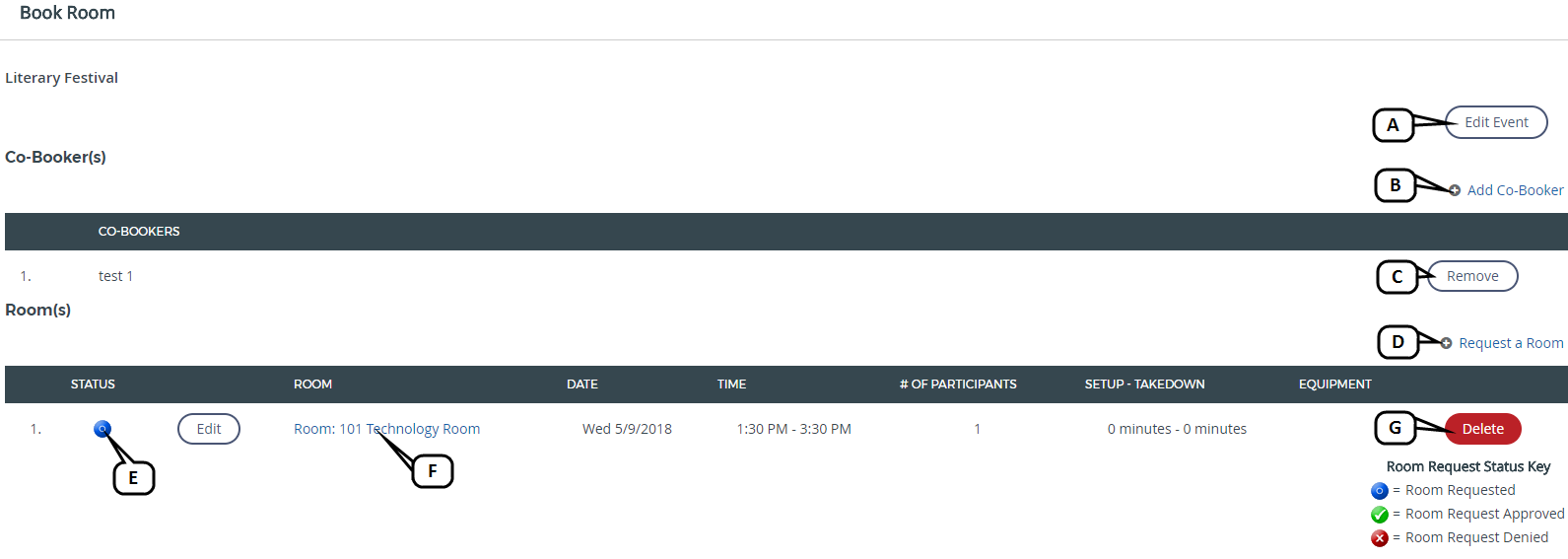
You can add co-bookers, request rooms for your event, and review the status of your room request on the Book Room page for your event.
-
Edit Event: Click to access the Edit Event page.
-
Add Co-Booker: Click to add an additional user as a co-booker for this event.
-
Remove: Click to remove the selected user as a co-booker for this event.
-
Request a Room: Click to add a new room request for this event.
-
Colored Circle: Review the status of your room request. Blue= room requested, Green= Room Request Approved, and Red= Room Request Denied.
-
Room Name: Click to open a new window with the room details including location, description, equipment, and setup.
-
Delete: Click to remove the room request for this event.
Add Co-Booker
-
Look up new users to add as co-bookers by First or Last name. In the search results list, select the user and click Add Selected.
-
Review the list of current co-bookers. Remove Current Co-Bookers by selecting the checkbox of the user you wish to remove and click Remove Selected.
-
Click Done once you are finished.
Request a Room
-
Click the Building drop-down to select the Building for your event.
-
Click the Room drop-down to select the Room for your event.
-
Click the Setup drop-down to select a room setup available for that room if desired.
-
Click the calendar icon to set the date of your event.
-
Enter the Event Start Time as the time when the participants will arrive.
-
Enter the Event End Time.
-
Click the Room Name to view the details associated with that room including location details, a description, setup, and equipment.
-
Select the desired equipment needed for your event.
-
Enter the Number of Participants. Note the number of participants cannot exceed the number of seats available.
-
Check the Make the request private box to hide this request from the public.
-
Enter a value for the Minutes Needed for Setup and Minutes Needed for Take Down as desired.
-
Click the Recurring drop down to indicate whether this event is recurring. Options include Daily, Weekly, Monthly, or Specify Additional Dates.
-
You can specify a pattern and range for a recurring room request.
-
-
Click Add Room.