
Follow these instructions to upload content to the content repository.
-
Click Administration in the tabs along the top of the screen.
-
In the Content Management channel, click Content Repository.
-
The existing uploaded content will display. Resource types display to the left. Select the type of resource you wish to upload from the Resource Types menu.
-
Click New to create a new resource. If you want to add content to an existing resource, skip to step 6.
-
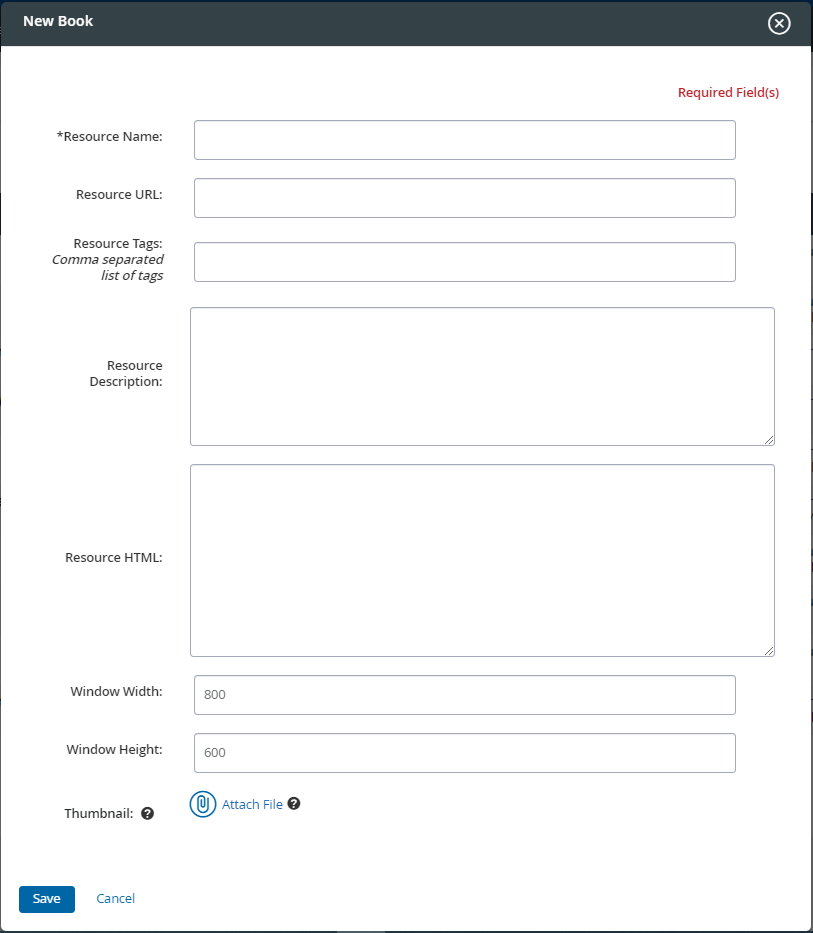
Complete the new resource form, noting required fields are denoted with an asterisk.
-
To add a thumbnail image specific to this resource, click Attach File. Suggested image size is 30 x 30 px.
-
When finished completing the form, click Save.
-
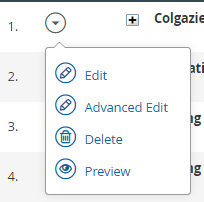
The resources list will be displayed. Locate the correct resource, then select Edit from the action menu.
-
Next to Files, click Upload.
-
Click Attach File to browse for and select the file to upload.
-
The newly-uploaded file will be displayed. Click Upload to add another. Click Trash to remove a file.
-
Click Done to return to the resources list.