
-
Click Administration in the tabs along the top of the screen.
-
From the System Administration menu, select User Accounts.
-
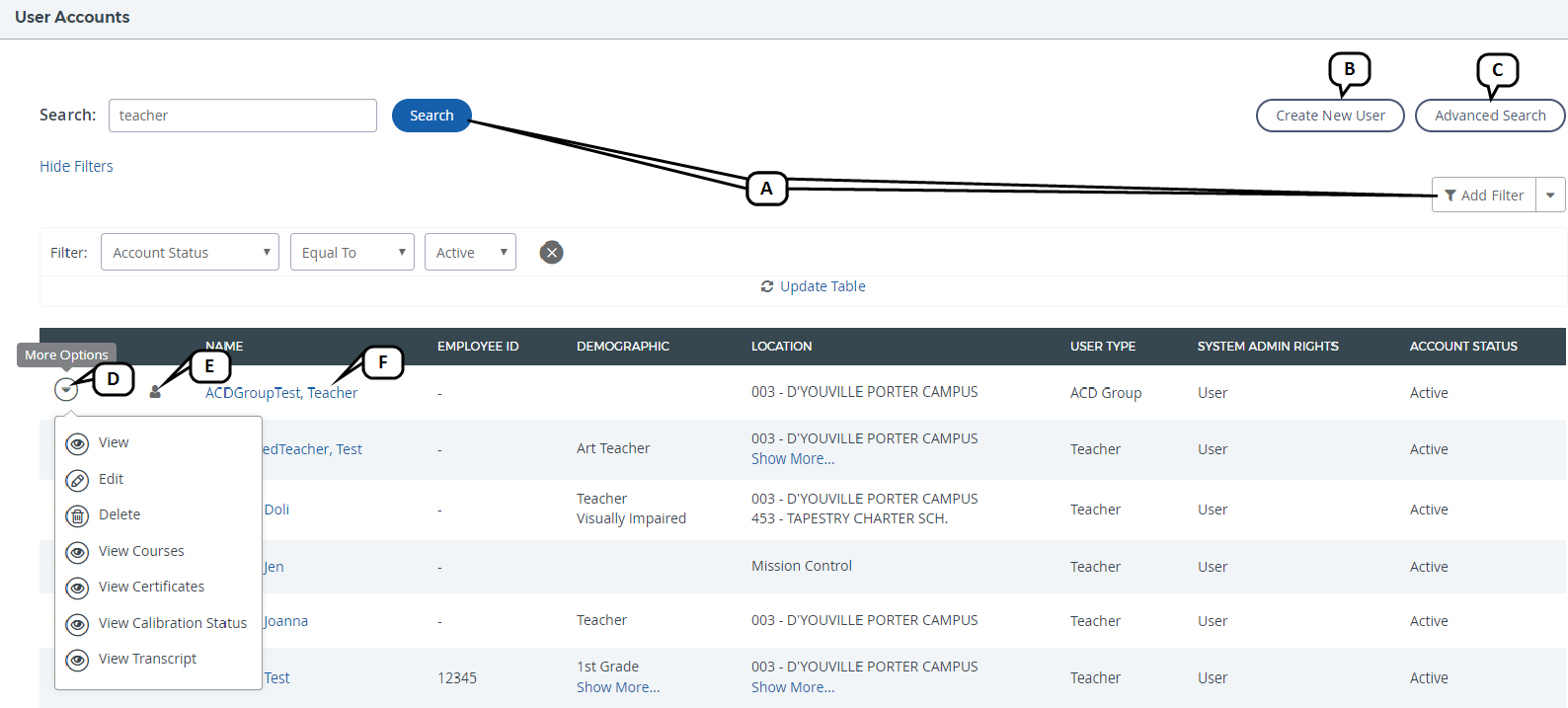
The User Accounts page will display, listing all users to which you have access.
-
To narrow the list of users, use the search field and filters. (Users are filtered by active status by default.)
-
To add a new user, click Create New User.
-
To search using more detailed criteria, click Advanced Search.
-
To access actions enabled for your role, click the drop-down menu. Actions include:
-
View: Select to view the user's account.
-
Edit: Select to edit the user's account.
-
Delete: Select to permanently remove the user's account from the system.
-
View Courses: Select to view any courses associated with the user.
-
View Certificates: Select to view any certificates associated with the user.
-
View Calibration Status: Select to view the user's calibration status.
-
View Transcript: Select to view the user's transcript.
-
-
To assume the identity of a user and view the portal with their permissions, click the person icon.
You will only see the assume identity icon for users that have fewer access rights than your account/ role. You will not be able to assume an identity while currently assuming a different identity.
-
To access a user account for viewing and editing, click the user name.
-