
Sample Ratings Activity - Self Assessment
The Evaluatee may be asked to complete a self-assessment prior to the evaluation cycle.
Evaluatee
- Locate the activity for employee self-assessment and click on the link.
- Click Start New to open a new instance of the self-assessment.
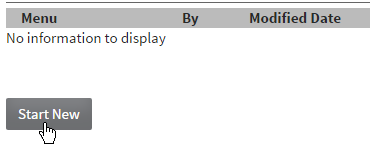
- The self-assessment fields become enabled.
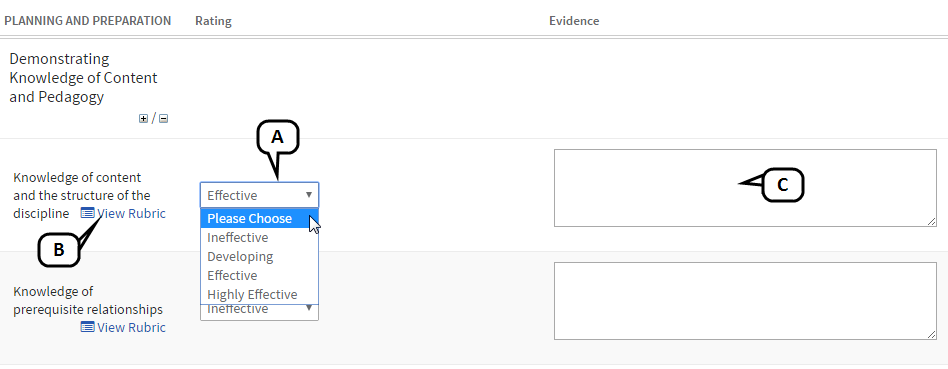
- Select a rating for each element.
- Click View Rubric next to each element to review the criteria that should be used for determining ratings.
- Enter goals, evidence, notes, or other feedback as appropriate.
- If enabled for your self-assessment, notes library options will appear that allows you to view notes and enter the notes library. See Notes Library for more detailed instructions on using this feature.

- Click Save Changes to save your work in progress.
- When you are finished making changes to your self-assessment, click Save & Exit to view a summary of your choices.
- From the summary screen, use the action menu to perform any of the following.
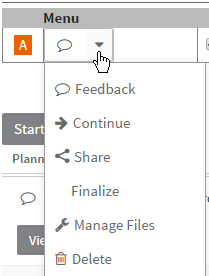
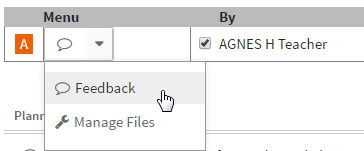
- Feedback - displays a pop-up view of all ratings and feedback for the self-assessment.
- Continue - returns you to the self-assessment task.
- Share - allows others with access to your plan to view your responses and notes.
- Finalize - marks the activity as complete.
- Notes - displays a pop-up view of all notes for the self-assessment.
- Manage Files - allows you to add and remove file attachments.
- Delete - removes this self-assessment instance.
- Once your self-assessment is complete, click Share to allow the Evaluator to view it. Then click Finalize to mark the activity complete and disable further changes.
- The activity will be denoted as complete with a green check icon.
Evaluator
- Locate the activity for employee self-assessment and click on the link.
- A summary of the Evaluatee responses will display. If a note was entered related to a standard/element, a feedback link will appear. Click it to view the note.
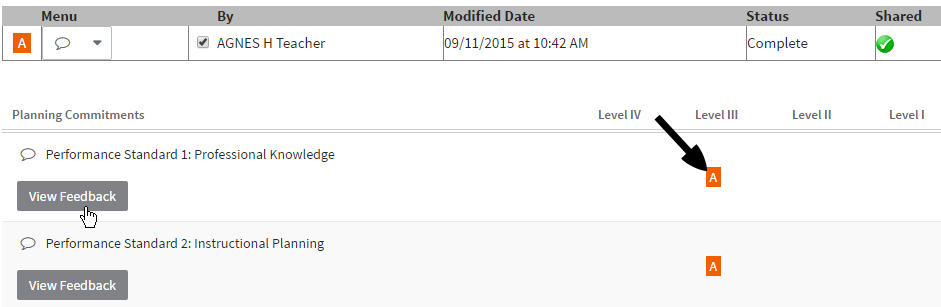
- To view all notes associated with a rating form, click Feedback from the actions menu.
- Click Back to return to the evaluation plan.