
Sample Ratings Activity - Observation / Walkthrough (Legacy Tool)
If your organization is using the legacy observation tool, the Evaluator will enter the evaluation ratings on the form provided within the observation activity of the evaluation plan.
Evaluator
- Locate the activity for observation and click on the link.
- Click Start New to open a new instance of the observation.
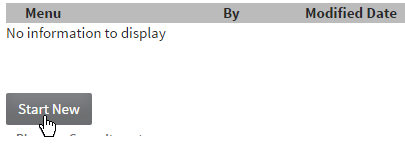
- Enter the observation details using the form provided. Then click Save.
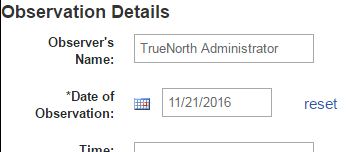
- The observation rating fields become enabled.
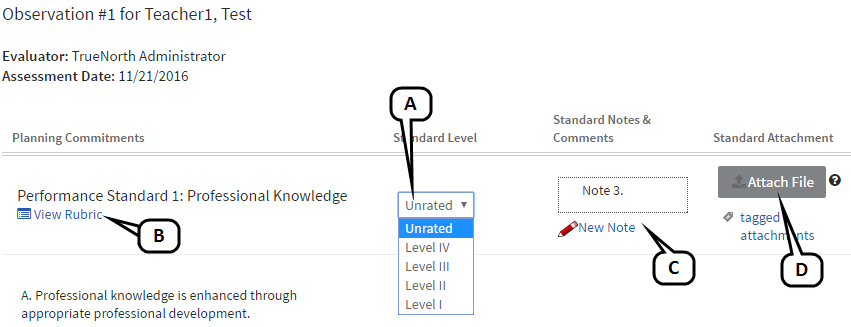
- Select a rating for each element.
- Click View Rubric next to each element to review the criteria that should be used for determining ratings.
- Enter goals, evidence, notes, or other feedback as appropriate.
- Click Attach File to add files as needed.
- The notes library options will appear to allow you to view notes and enter the notes library. See Notes Library for more detailed instructions on using this feature.

- Click Save Changes to save your work in progress.
- When you are finished making changes to the observation, click Save & Exit to view a summary of your choices.
- From the summary screen, use the drop-down action menu to perform one of the following.
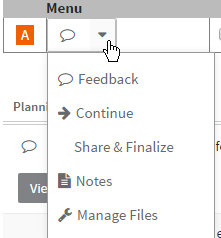
- Feedback - displays a pop-up view of all ratings and feedback for the observation.
- Continue - returns you to the observation task.
- Share & Finalize - allows others with access to the plan to view your ratings and notes; marks the activity as complete.
- Notes - displays a pop-up view of all notes for the observation.
- Manage Files - allows you to add and remove file attachments.
- Delete - removes this observation instance.
- Once finalized, the activity will be denoted as complete with a green check icon.
Evaluatee
- Locate the activity for observation and click on the link.
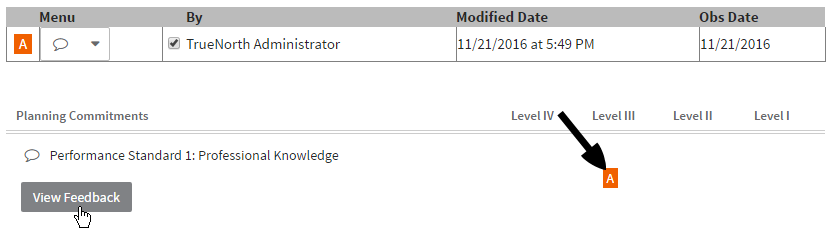
- A summary of the Evaluator responses will display. If a note was entered related to a standard/element, a feedback link will appear. Click it to view the note.
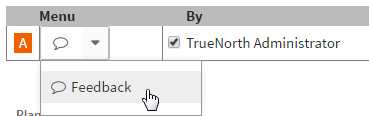
- To view all notes associated with a rating form, click Feedback from the drop-down menu.
- Click Back at the top of the screen to return to the evaluation plan.