Ratings
- Select Ratings tab to access the observation framework.
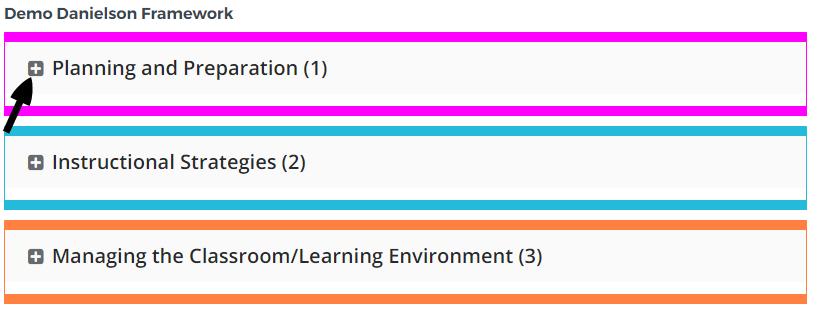
- For each level of the framework preceded by a plus (+) icon, click anywhere in the box to show/hide the levels below it.
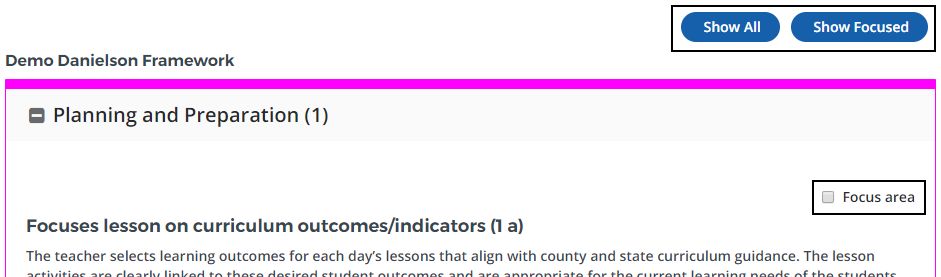
- To tag an element as a focus, select the Focus area checkbox. You can toggle the view to show all elements or only focus areas using the buttons at the top of the screen.
To assign ratings, click on the appropriate rating box for each element. It will become highlighted.
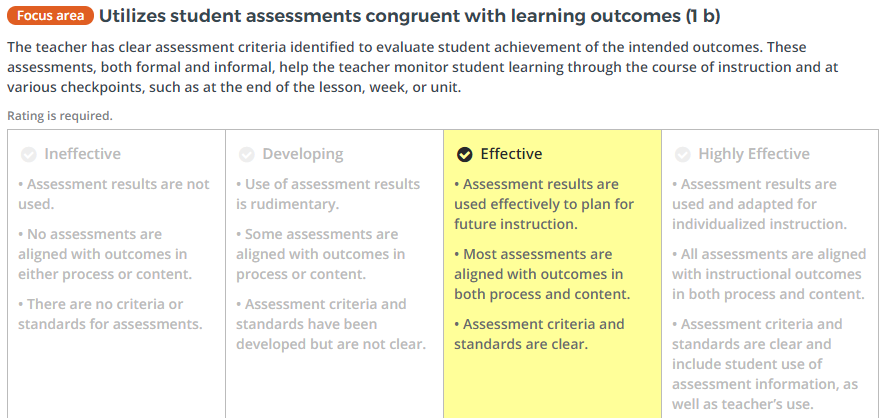
If you were provided a rating scale with a checkable rubric, you can select rubrics individually from any rating column, then select one column as the overall rating. It will become highlighted.
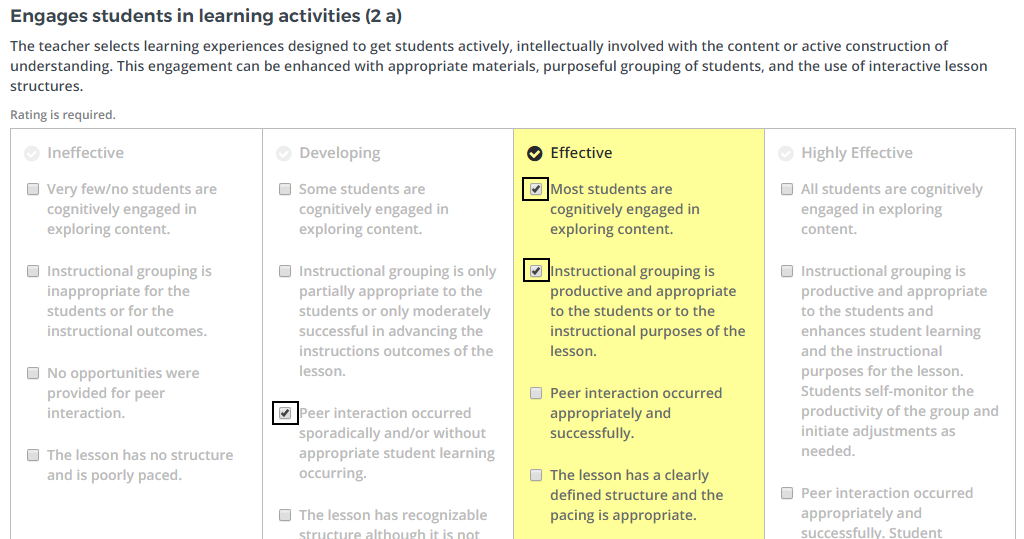
If enabled for this observation, Evidence appears below the ratings for each element.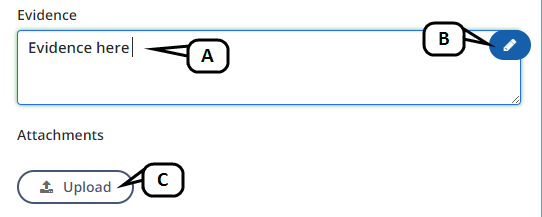
- Enter evidence directly in the text box as appropriate.
- Select the pencil icon to access an advanced text editor.
- Select Upload to add a doc or txt file to the evidence.
- To use your evidence sessions, select the slider and select the Evidence tab. Evidence sessions that have been previously recorded are available. Drag the desired post to the appropriate Evidence box.

Text objects available for dragging and dropping are indicate by a double-sided cross arrow icon.
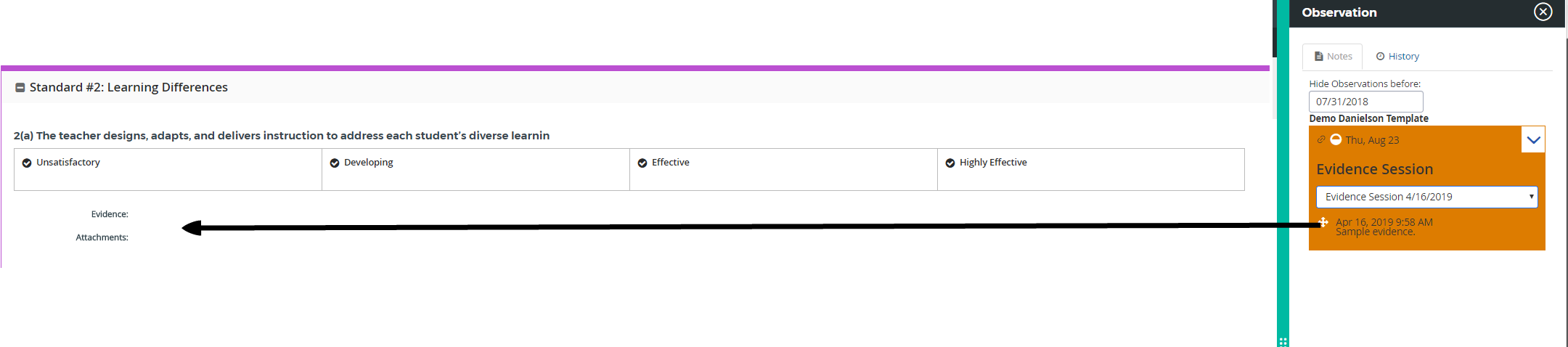
You can limit the evidence shown by selecting a date in the Hide Observations before section. Only the time stamp and evidence are drag and droppable.
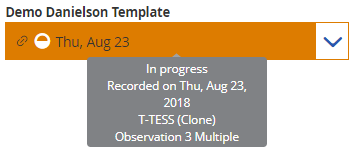
- To refer to previous observation instances, select the slider and select the Observations tab. Observations are grouped by specific instance. Expand to view more details or select Full Observation to navigate to that observation page. Hover over a specific instance to review the status and time stamp.
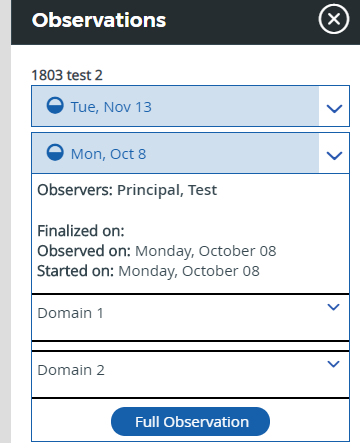
If an observation is linked to an activity, you will see the link icon. Hover over the observation to view which activity it is linked to.